

Site Snap
Safety at a Glance
Site Snap streamlines daily check-ins, safety inductions, and photo reporting into one clear, worker-friendly mobile app.

Role: UI/UX Designer
Timeline: 16 weeks
Tool: Figma, Photoshop
Define Problems
On many construction sites, safety and compliance workflows are fragmented and hard to use. Workers are expected to sign in, follow induction rules, complete tasks, take photos, and report hazards — but these actions are split across paper forms, QR codes, messages, and different apps.
Inconsistent check-ins
Attendance is recorded in different places, making it difficult to track who is actually on site.
Unclear task evidence
Workers are not always sure which tasks require photos or where to upload them.
Slow hazard and emergency reporting
there is no single, simple entry point to log issues or get help quickly.
Scattered permits and training records
Licenses and certificates live in emails, PDFs, or physical cards instead of one trusted place for the worker.
Project Goals
This project aims to make on-site safety workflows easier for workers while giving site managers clearer visibility of who is on site and what has been completed.
Make site check-in fast and unambiguous. Workers should know in seconds if they’re checked in to the right site and shift.
Clarify daily tasks and photo requirements for workers. Today’s tasks and which ones need photo evidence should be obvious at a glance.
Provide clear flows for hazard and emergency reporting. Workers should have a simple, guided way to report issues and emergencies with photos.
Make permits and attendance visible to the worker, not only the manager. Each worker can quickly see their own permits, expiry dates, and attendance rate.
Who are the users?

Primary user
Site worker
Site Snap is designed first for the people who are physically on site every day. They need to get through check-in, induction, tasks and reporting while wearing PPE, under time pressure, and often with limited attention.

Secondary user
Site manager
Needs a reliable view of who is on site, what has been completed with photo evidence, and what hazards have been reported, without interrupting workers constantly.
Starting the day
Arriving at the gate, scanning a QR code to check in, and confirming that today’s induction and PPE are complete before starting work.
Monitoring who is on site
Checking real-time attendance to see which workers are currently signed in and where they are assigned.
Completing today’s tasks
Opening the app to see today’s tasks, quickly spotting which ones need photo evidence, and uploading clear images as proof of completion.
Reviewing safety and work quality
Browsing photo-backed task completions and new hazard reports to decide what needs follow-up or escalation.
Flow 1 - Site check-in with QR code
Workers scan a QR code at the gate to check in to the site. The flow focuses on fast completion and one-glance confirmation:


Home → “Scan QR code”
The home screen highlights site check-in as the primary action.
QR scan screen
A clean camera view with a centered frame so workers can quickly scan the site QR code.
Check-in success
A full-screen confirmation showing site name and time, updating the worker’s attendance and home status.
Check-in failure
An error state explaining that the QR code is not valid for this site.
Flow 2 – Tasks and photo evidence
Workers complete their tasks by taking photos, adding markup, and submitting proof in a clear step-by-step UI.


My Tasks
Today’s tasks are grouped into sections such as “Photo required” and “Completed”, so workers can see what still needs attention.
Task Details
Each task shows title, location, due date, people on this task, and a Take a photo action at the bottom.
Take a photo
Opens the in-app camera to capture on-site evidence and attach it directly to the task.
Annotate before upload
After capturing a photo, workers can draw and add text on the image to highlight issues before uploading it.
- Tagging example & Complete task


Capture & mark damage
The worker takes a photo on site, then uses the pen and text tools to highlight damaged areas or important details directly on the image.
Upload & flag issue
After editing, the worker taps Upload and marks the task as “Issue flagged”, so everyone on the task can see the annotated photo.
Task completed & filed
Once the required photos are uploaded, the task state updates to Task Completed and automatically moves into the Completed · Photos saved section of the task list.
Flow 3 – Hazard reporting
Hazards are captured in a short focused flow to ensure risks are logged before they turn into incidents.


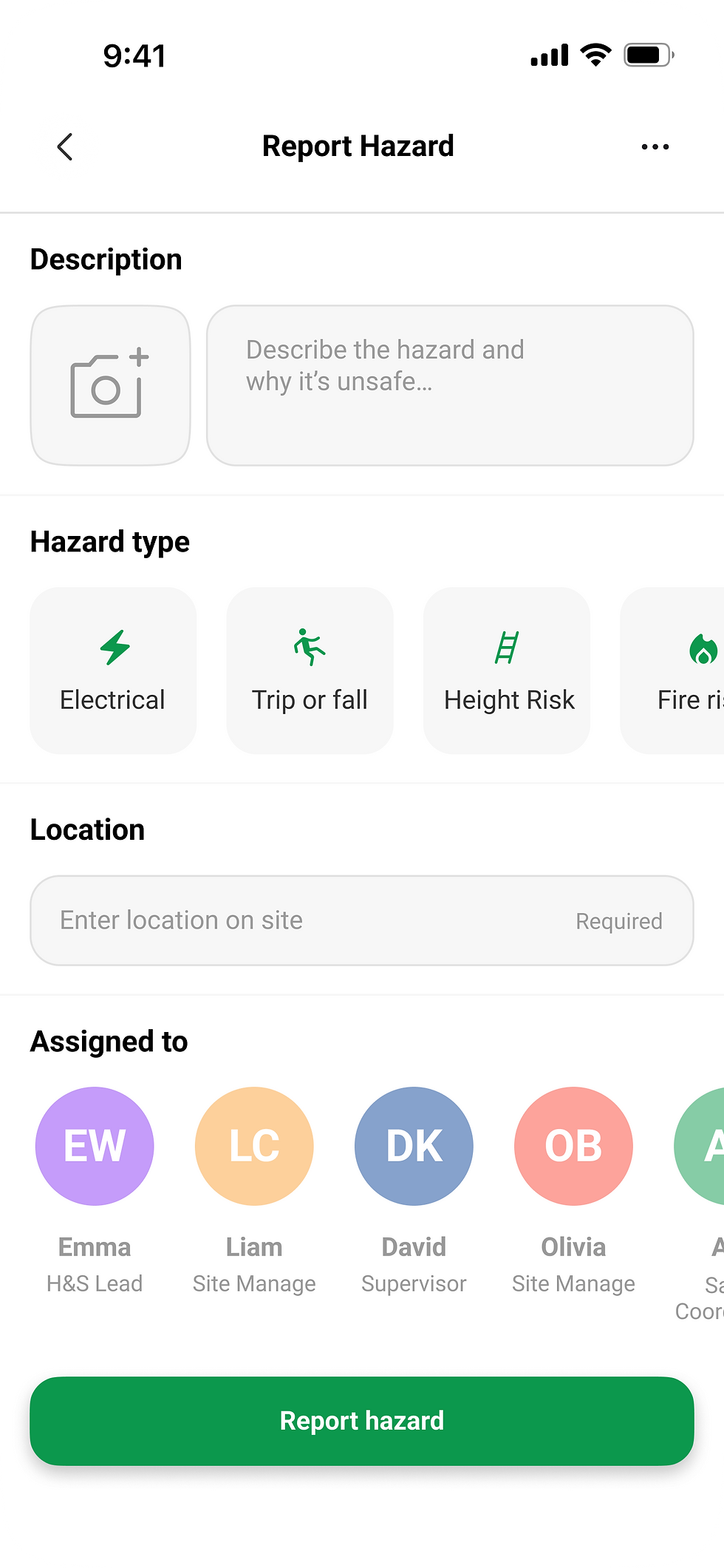


Home → “Report hazard” from the quick actions row.
Select hazard type & location
Add a short description and attach 1–2 photos (from camera or gallery).
Hazard reported
Create a record that is visible to the site manager and H&S lead, with time, location and images.

Hazard type buttons
Supporting screens


My Permits
Shows all active and expired permits as simple cards with permit type, site, and expiry date.
Messages
Simple filters (All / Unread / People / Groups) keep the list usable even on busy projects.
My Profile
Provides quick access to settings such as notifications, language, dark mode, and privacy.
UI Components
Color System
Brand / primary color
0C984D
000000
FFFFFF
Neutral / Background
000000
333333
999999
E1E1E1
F7F7F7
FFFFFF
Semantic
FB4537
FB9F36
0C4498
8A38F5
6C7F8B
0C984D
Typography
Font:
Roboto
Sizes:
H1: 24 pt - bold
H2: 16 pt - Bold
Title: 16 pt - Regular
Body: 14 pt - Regular
Button : 14 pt - Bold
Caption: 12 pt - Regular
Radius & Elevation
Cards — 16 pt
Buttons — 16 pt
Buttons small — 8 pt
Shadow / Elevation
Y: 4
Blur: 10
Color: 12% #000000
Reference device: iPhone, width 390 pt
Content horizontal margin: 16 pt on both left and right sides
Tile vertical padding: 12–16 pt inside each tile (top and bottom)
Spacing
4 pt:
Micro spacing between icons and text, and inside labels.
8 pt:
Inner padding for icon buttons and small components.
12 pt:
Vertical spacing between form rows and between content blocks inside cards.
16 pt:
Horizontal padding inside cards and list items.
24 pt:
Vertical spacing between major sections/modules on a page.
Layout & Grid
Icon& size
Large: 120 pt

Medium: 40 - 48 pt

Regular: 24 pt

Small: 20 pt

Reflection
Through designing Site Snap and analysing real on-site workflows, this project made the importance of safety for workers much more concrete. Safety is not just a set of rules or checklists; for workers it directly affects whether they feel protected, trusted, and able to focus on the job rather than on admin.
Research into the worker experience also surfaced clear pain points: fragmented tools for check-in and reporting, time pressure at the start of each shift, and high cognitive load when switching between tasks, photos and forms. These insights shaped the decision to keep flows short, visual and action-focused, so that safety tasks feel like a natural part of the workday instead of an extra burden.

Site Snap - Manager
mobiloe app
The next step for this concept is to design a Site Snap Manager app as the manager-facing counterpart:
Manager dashboard to view overall site status, who is currently on site, and recent hazard reports.
Project information view with key details such as sites, cost overview, timelines and upcoming milestones.
Review tools for evidence to browse annotated, photo-based task records and track follow-up actions for each issue.
Planning & coordination features to schedule work, assign tasks to specific teams, and prepare sites for upcoming deliveries or high-risk activities.
Together, the worker app and the manager app aim to form a connected safety ecosystem: workers focus on fast, simple capture on site, while managers gain the visibility they need to manage risk, cost and scheduling across multiple projects.